Open a service or a song on stage
Stage view shows your charts full screen, one page at a time. How to open it and move around.
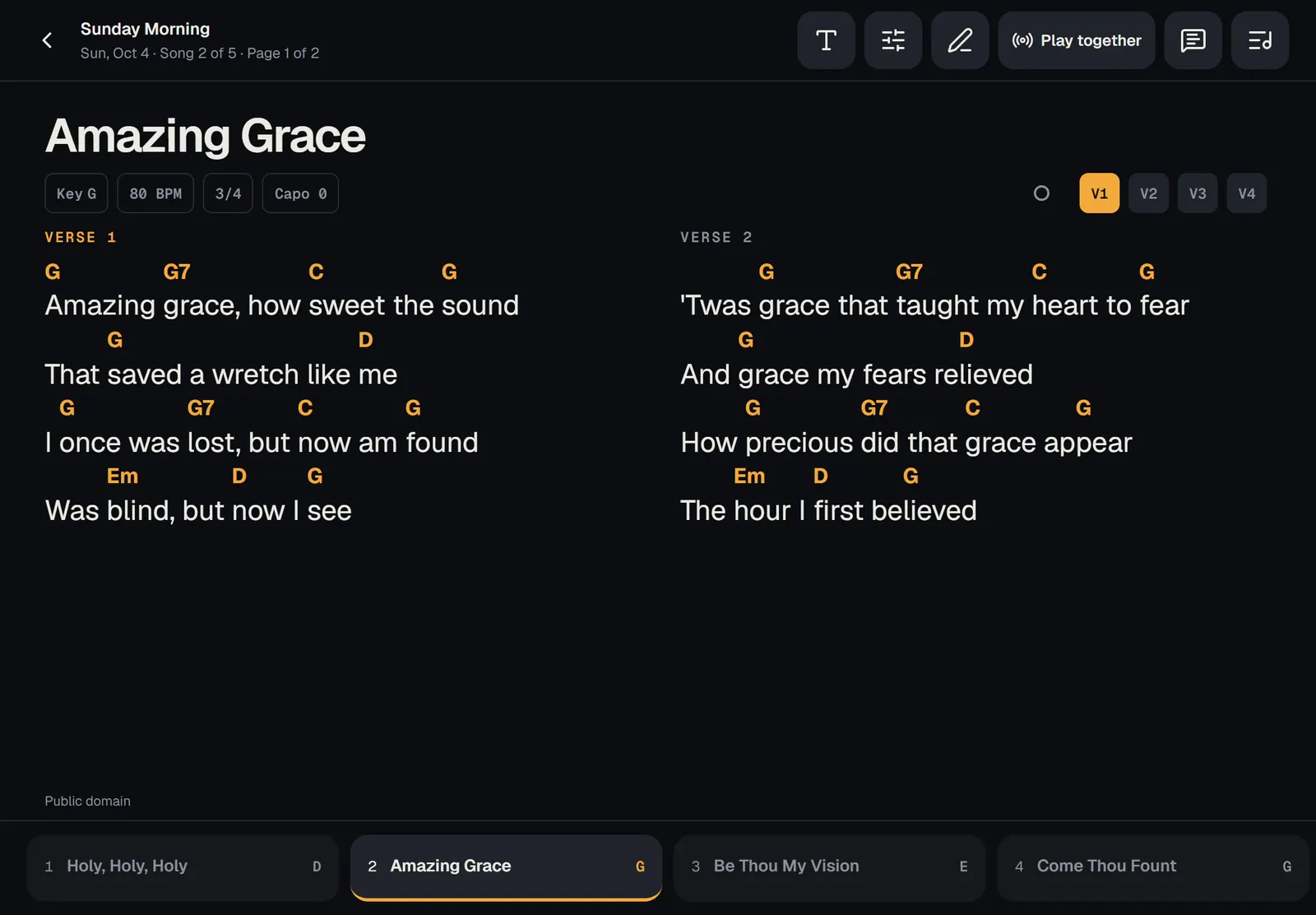
Stage view puts a service's charts full screen, one page at a time, in the service's key, so you can play from a tablet or phone. Open the service and press . To play one song by itself, press on the song's page.
Open a service on stage
- Open and choose the service.
- Press .
- The first song opens. The line at the top shows the service, the date, and which song and page you're on.
Anyone on the team can open a service on stage once its set list is published. Before that, stage view says the set list isn't published yet.
Move between pages and songs
- Swipe left for the next page, or right to go back.
- Or tap near the right or left edge of the chart.
- A page-turn pedal or the arrow keys work too. See Pedals and keyboard keys.
- After a song's last page comes the next song. At the very end you'll see .
- The small buttons beside the song's key and tempo are the parts of the song, in order. Tap one to jump to that part.
The set list
Every song in the set is listed along the bottom with its number and key. Tap one to go to it. The button at the top right with a list and a music note opens the : the whole order of service, with headers, other items, and notes. Tap a song there to jump to it.
The speech bubble button opens the service's . PraisePad asks your device to keep the screen on while stage view is open. The back arrow at the top left takes you back to the service.
One song on its own
On a song's page, opens just that song, in the key you're looking at. It works the same way, without the set list or playing together.
If a song has both a typed chart and a PDF, tap or to switch between them.
Open in PraisePad to try it