Change the key, or play with a capo
Leaders set the key the band plays in. Anyone can preview another key or set a capo just for themselves.
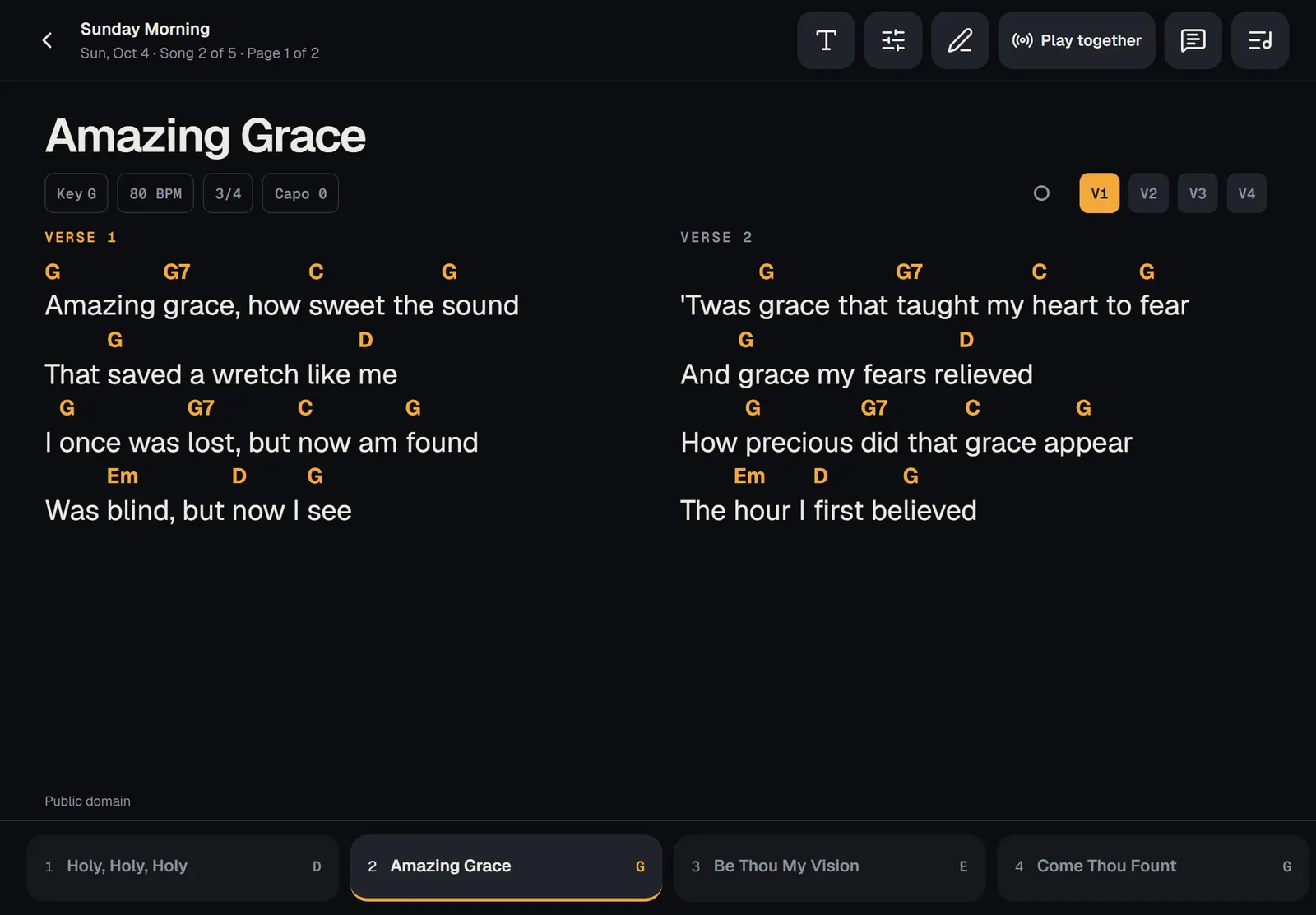
A leader sets the key the band plays in for each service, and PraisePad moves every chord for everyone. Anyone can set a capo for themselves: the chart then shows the chord shapes to play, and nobody else's screen changes.
The key the band plays in
Musicians see the key the leader chose, and can try another one on their own screen.
Try another key yourself
On a song's page, pick a above the chart. The chart changes on your screen only, and the note under it says "Preview only". and open in the key you picked.
On stage, tap the sliders button at the top and pick a key under . Changing the key here only changes your screen, on this device. Tap the "Back to" link to go back to the service's key.
Use a capo
- On stage: tap the sliders button, then use + and − beside . PraisePad keeps your capo for that chart, and it's yours alone.
- On a song's page or when printing: choose from the list beside the key, from up to Capo 11.
With a capo, the chords on your chart become the shapes you play. The stage shows it at the top, like "Capo 2 · G shapes", and the song page says "Capo 2: chord shapes in G."
A capo does nothing in view, because numbers are the same in any key. See Nashville numbers.
When a leader uses play together, your screen follows their song and section, but your key, capo, and view stay your own.