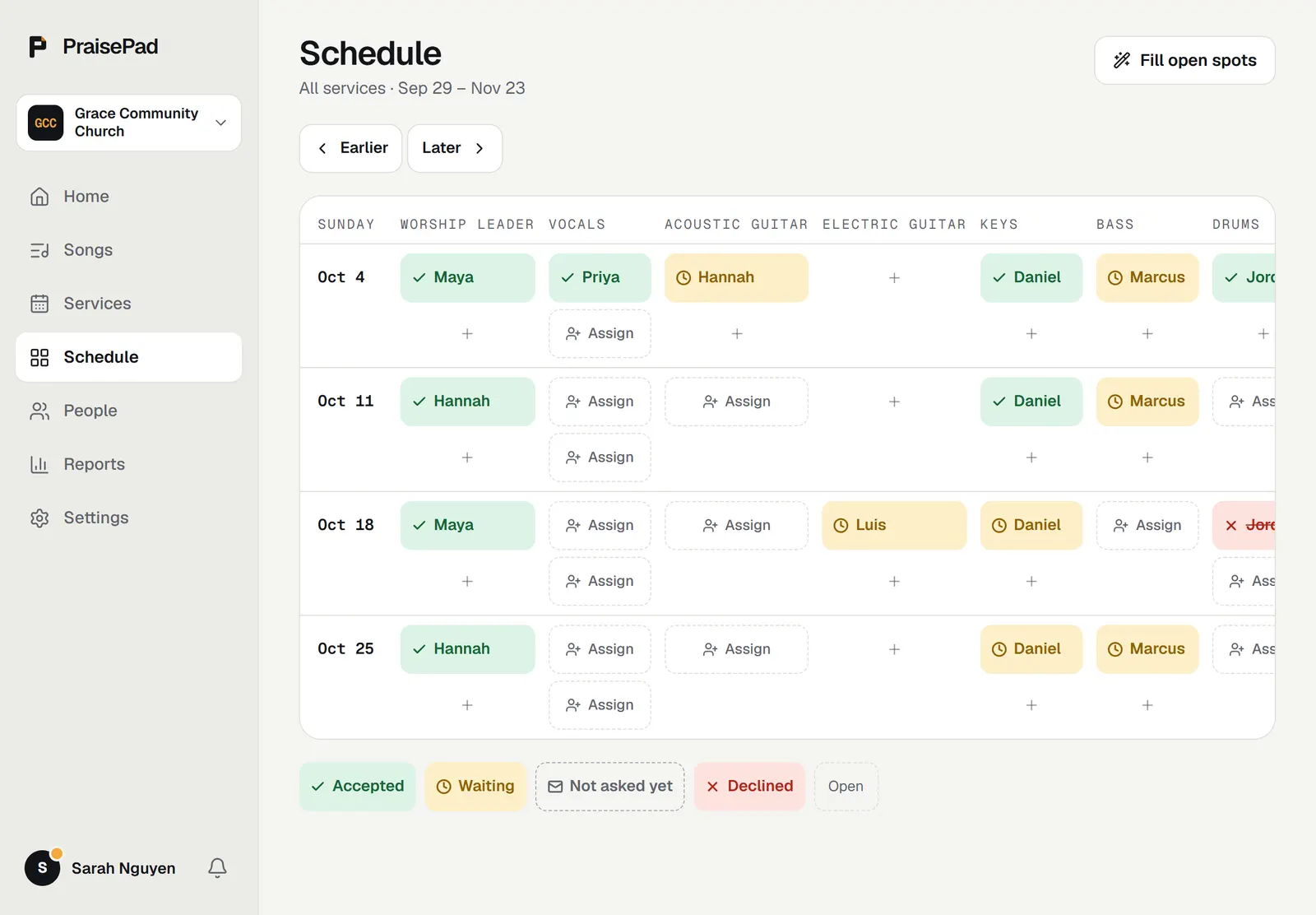
Ask people to play on a service
Choose people for each position on a service, then send the requests by email and in the app.
To put someone on a service, choose an open spot, pick a person, then send the requests. Nobody hears anything until you send, so you can build the whole team first.
Choose people
- Open the service and choose the tab.
- Under a position, choose the open spot that says and the position's name. On the page, choose in the service's row instead.
- If you like, add a , like "Alto on the chorus".
- The people who play that position come first. Choose next to a name.
Anyone you add shows as until you send.
Warnings when you choose by hand
A red line under a name is a warning, not a block. It can say the person is:
- Away that day, from their time away
- On another service at the same time
- Someone who said no to their last request
- Kept off by one of your church's scheduling rules, like "A rule says not two weeks in a row"
You can still choose them: the button says . Someone who already said no to this spot shows .
Send the requests
Choose at the top of the team. It counts them, like "Send 3 requests". On the page, the same button sends every request for the eight weeks shown.
Each person gets one email for all their positions on that service, with the times, your note, and a button, plus a notice in the app. Their spot shows until they answer. You'll see or as answers come in, and the leader who asked gets an email when someone can't make it.
- No email or account: PraisePad can't ask them. Tell them yourself, then use the row's menu to choose or .
- No answer yet: PraisePad sends one reminder email after two days. The row's menu also offers .
- Changed your mind: returns them to . Taking someone off a position they were asked for tells them.