Fill open spots automatically
Let PraisePad draft the open spots on your services, then check and save it before anyone is asked.
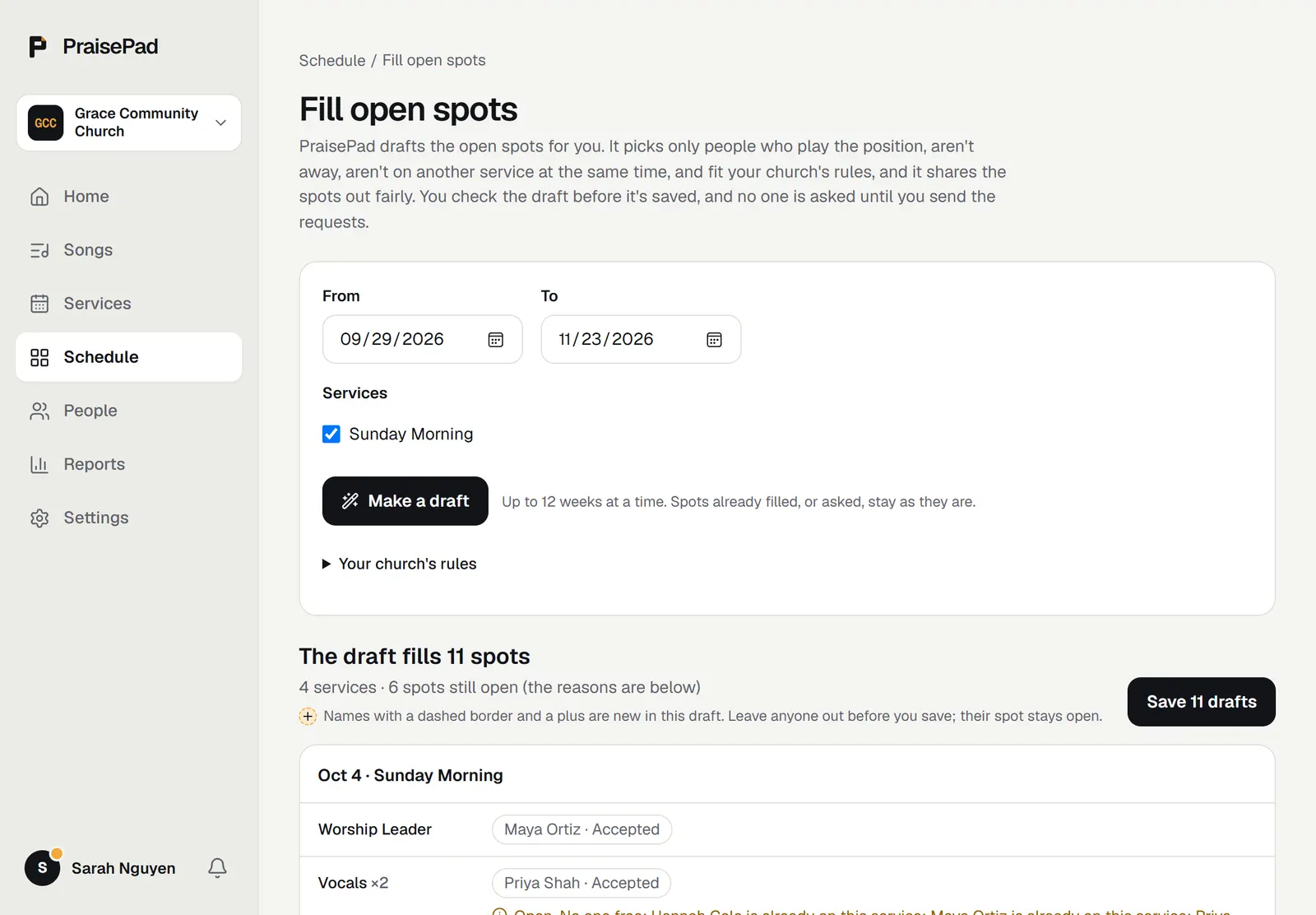
drafts the open spots on your services for you. You check the draft, leave anyone out, and save it. Nobody is asked until you send the requests.
Make a draft
- Open and choose .
- Choose the dates under and , up to 12 weeks at a time.
- Under , check the kinds of service to fill.
- Choose .
It only picks people who have the position, aren't away on any day of the service (rehearsals too), aren't on another service at the same time, didn't say no to this service, and fit your church's scheduling rules. Among those, it shares the spots out fairly, starting with who has served least lately. Spots already filled or asked stay as they are.
Check it
Each service is listed position by position. Names new in this draft have a dashed border and a plus.
- To leave someone out, choose the x on their name. Their spot stays open. Choose the undo arrow to put them back.
- A spot it couldn't fill says why, like "No one free: Ava is away".
- shows each person's count.
Save it, then send
- Choose the save button. It counts them, like "Save 11 drafts".
- The names go on the schedule as , with a dashed border. Only leaders can see them.
- Choose , look it over, and choose the send button at the top when you're ready. See Ask people to play.
If the schedule changed while you were looking, nothing is saved and you see the draft as things are now. Check it again, then save.
Open in PraisePad to try it