The player bar
Play a song's recording while you move around PraisePad, keep the video out of the way, and mark parts to learn.
Press play on a song and its recording plays in a bar at the bottom of the window. The bar stays as you move around PraisePad: open a service, check the schedule, read a chart, and the song keeps playing.
Play a song, or the whole list
Press the round play button on a song in : it's there on every song that has a recording. at the top of the songs list plays every listed song that has a recording, in order. On a song's page, every recording that can play has : a YouTube video, a Spotify track, album, or playlist, an Apple Music song, album, or playlist, or a recording uploaded to the song. The song's other recordings follow it as a queue.
A YouTube video shows in a small window; Spotify's player sits in the bar itself; Apple Music's sits in the window. One recording plays at a time, and on the bar stops it. After a reload the bar comes back paused where it was.
Open in PraisePad to try itThe buttons
The bar has Previous and Next, play and pause, back and forward 10 seconds, the position, and, for learning a part, a speed of 1×, 0.75×, or 0.5×, an A–B loop (press at the start of the bridge and again at its end, and that part loops until you press it a third time), , and : once for the whole list, twice for this song. On a computer, hold the pointer over a button to see what it does. On an iPad held upright, the speed, loop, shuffle, and repeat sit under the three dots on the bar.
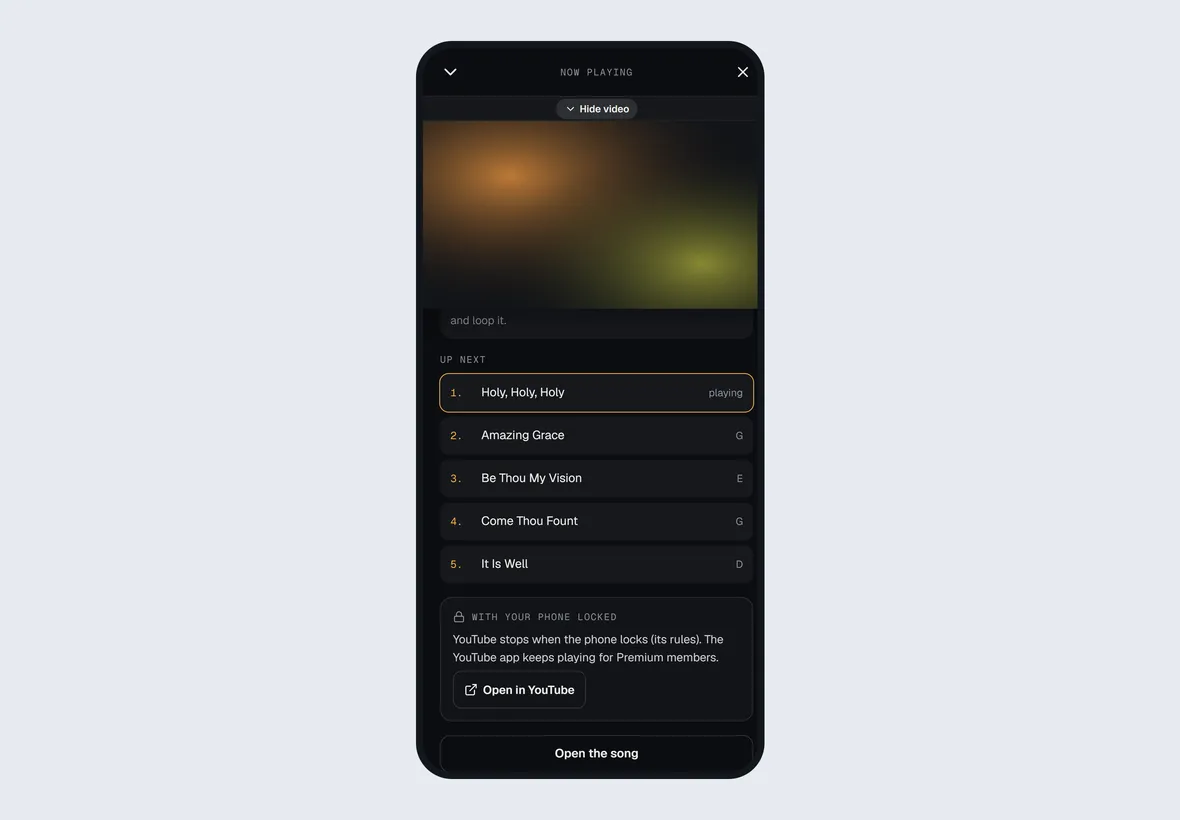
Press the song's name on the bar for : bigger buttons, the marks, and the list, where you can pick the next song.
Keep the video out of the way
On a computer or an iPad held sideways, the button in the bar chooses where the video goes:
- parks it in the sidebar's empty space, under the menu, where it covers nothing. On a short screen without that room, Mini is a small square in a corner.
- and put it in a corner. Drag it by its strip to another corner, or onto the sidebar to make it Mini.
- leaves just the bar. It pauses: YouTube wants its video in sight while it plays. Press play and the video comes back where it was.
The strip above the video has or , and , too. Your choice is kept on this device. Every page ends above the bar, so the last song in a list is never hidden behind it.
On a phone
The bar sits above the tabs with the video above it: Previous, play and pause, Next, and a thin line for the position. Tap the song's name for , which fills the screen with the rest: the position to drag, 10 seconds back and forward, , the loop, , , the marks, and the list. , or a swipe down on the video, puts it away; YouTube wants its video in sight while it plays, so that pauses it. The first time a video plays on a phone you may need to tap inside it: that's the phone's rule, not ours.
The bar hides and pauses on the stage, and comes back paused when you leave it.
With your phone locked
- Your church's own recordings keep playing, from one song to the next: a recording uploaded to the song, with the phone locked or another app open. The lock screen and headphones can pause, skip 10 seconds, and move to the next song. A small lock beside a song in , and on a service's , means it keeps playing.
- YouTube stops when a phone locks: that's YouTube's rule and the phone's. While the phone is locked, the bar skips a YouTube, Spotify, or Apple Music song and goes on to the next of your church's recordings. When you're back, a note says what played and what it skipped.
- Spotify and Apple Music play whole songs in their own apps, locked or not. On a phone or tablet, has , with , , or . The YouTube app keeps playing locked for YouTube Premium members.
- On a service's on a phone, a button beside plays just the ones that keep playing locked. If your leaders made the set into a Spotify or Apple Music playlist, another opens the whole set in that app.
- With no connection, a recording that's already playing goes on with what it has. A service you've downloaded for offline keeps its recordings on the device, so they play with no signal at all.
Marks for the parts you're learning
While a recording plays, press M (or the flag on the bar, or in ) to mark where you are. One tap names it after a part of the chart, like Verse 1 or Bridge, or type a name. Leaders choose , which everyone sees, or ; everyone else's marks are their own. Marks sit on the progress line as small flags: choose one to jump there. In the marks list, the loop button beside a mark plays from it to the next mark, over and over, until you press the A–B button. Apple Music's player can't be moved from outside, so it has no marks.
Spotify and Apple Music
Spotify's and Apple's players give anyone 30 seconds, and the whole song to someone signed in to that service in the player. A link that can't play in place (an artist, a show, a short link, another site) says where it opens, in a new tab. Nothing from these services loads until you press play.