Song usage and reporting to CCLI
For leadersUpdated September 29, 2026
See which songs your services used, download the report, and work through the list to report to CCLI.
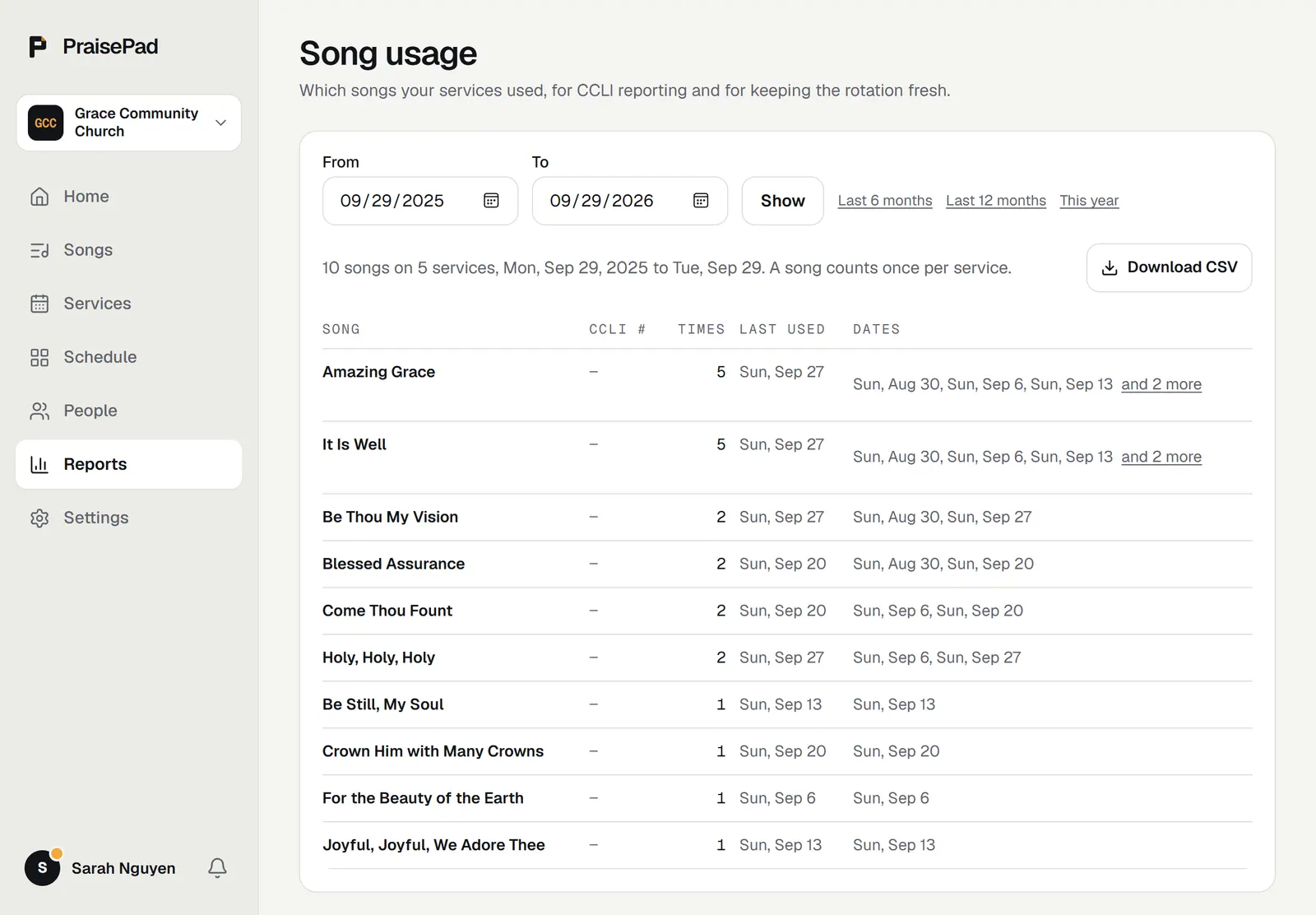
The song usage report shows which songs your services used over a range of dates, with a list that makes reporting to CCLI quick. Open in the menu to find it.
Open in PraisePad to try itRead the report
- Open . It starts on the last 12 months.
- To change the range, set and and press , or choose , , or .
- The table lists each song with its CCLI number, how many times it was used, when it was last used, and the dates.
- Press for a spreadsheet with each song's title, CCLI Song #, copyright, times used, and dates.
Only published services that have already happened count, and a song counts once per service. A draft service, or one still ahead, isn't in the report yet.
Report to CCLI
CCLI takes reports on its own website, one song at a time, by each song's CCLI Song #. The list under the table has what you need, most used first.
- Press .
- For each song, press to copy its number, then search for it and report its use on CCLI's form. The count shown is how many services used it.
- Check off each song as you go. The checks stay on this device, so you can finish later.
Songs with no CCLI number are listed first. Open each one and add its number, and it joins the list. Songs whose copyright says public domain are listed as nothing to report.
Keep the rotation fresh
- Used most lists the 10 songs used most in the range.
- Resting lists library songs not used lately. Choose how many weeks next to and press .
Did this help?