Present: record the sermon
Record the sermon from the sound desk at the booth, then trim it, cut a part out, and download it.
The computer at the booth can record the sermon from the sound desk while it runs the slides. Afterward, trim the start and end, cut out a part if you need to, and download it.
Set up the booth computer
- On the booth computer, open the service's slides, then and .
- Under , turn on . When the browser asks for the microphone, choose Allow on every visit.
- Choose the sound desk's , then : a level shows, and five seconds play back.
Recording works in Chrome or Edge.
While it records
A REC button sits at the top of the slides, reading until the sermon goes on screen. Then it records, and it stops a few minutes after the sermon, or as soon as a song starts. The pastor's screen shows REC while it records.
Click it to , add a (or press M), or . Turn off to keep going until you stop it. A slide with pauses the recording while it's on the screen, for a prayer that names someone.
If the page reloads, the recording carries on. If the internet drops, it's kept on the computer and sent when the connection is back.
Trim and download
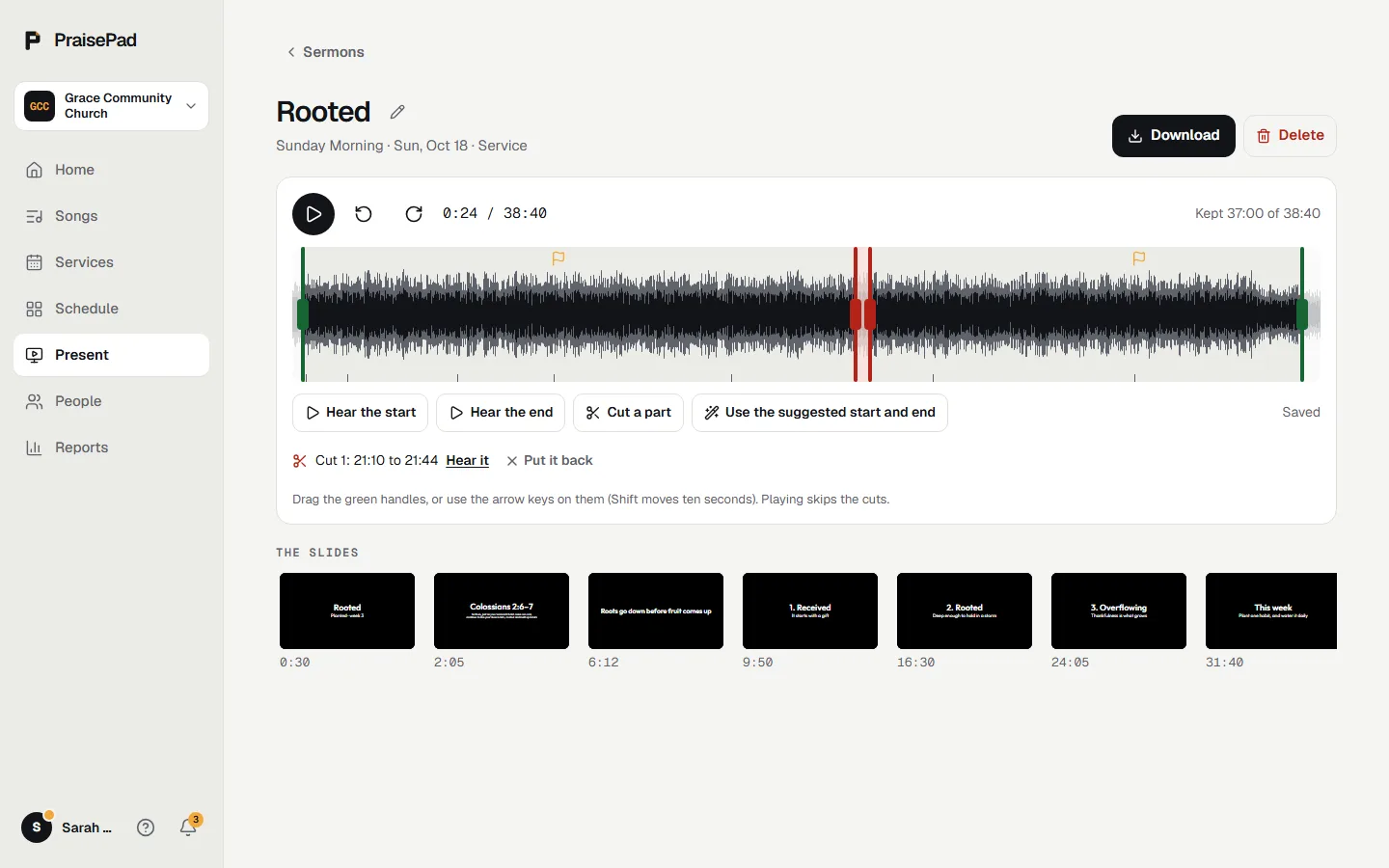
Press on Present's page, then .
- The green handles start at the sermon, at a pause. Drag them, or use the arrow keys on them (Shift moves ten seconds).
- and check them. takes out a stretch, and returns it.
- Press for the trimmed recording.
A recording that wasn't finished shows . A deleted one stays in for 30 days.
Open in PraisePad to try it