Present: change slides while the show runs
Fix a slide while it's on the screen, open other pages without stopping the show, and pick up after a reload.
While the slides are live, you can fix a slide, look at other pages, and even reload, and the screens keep going.
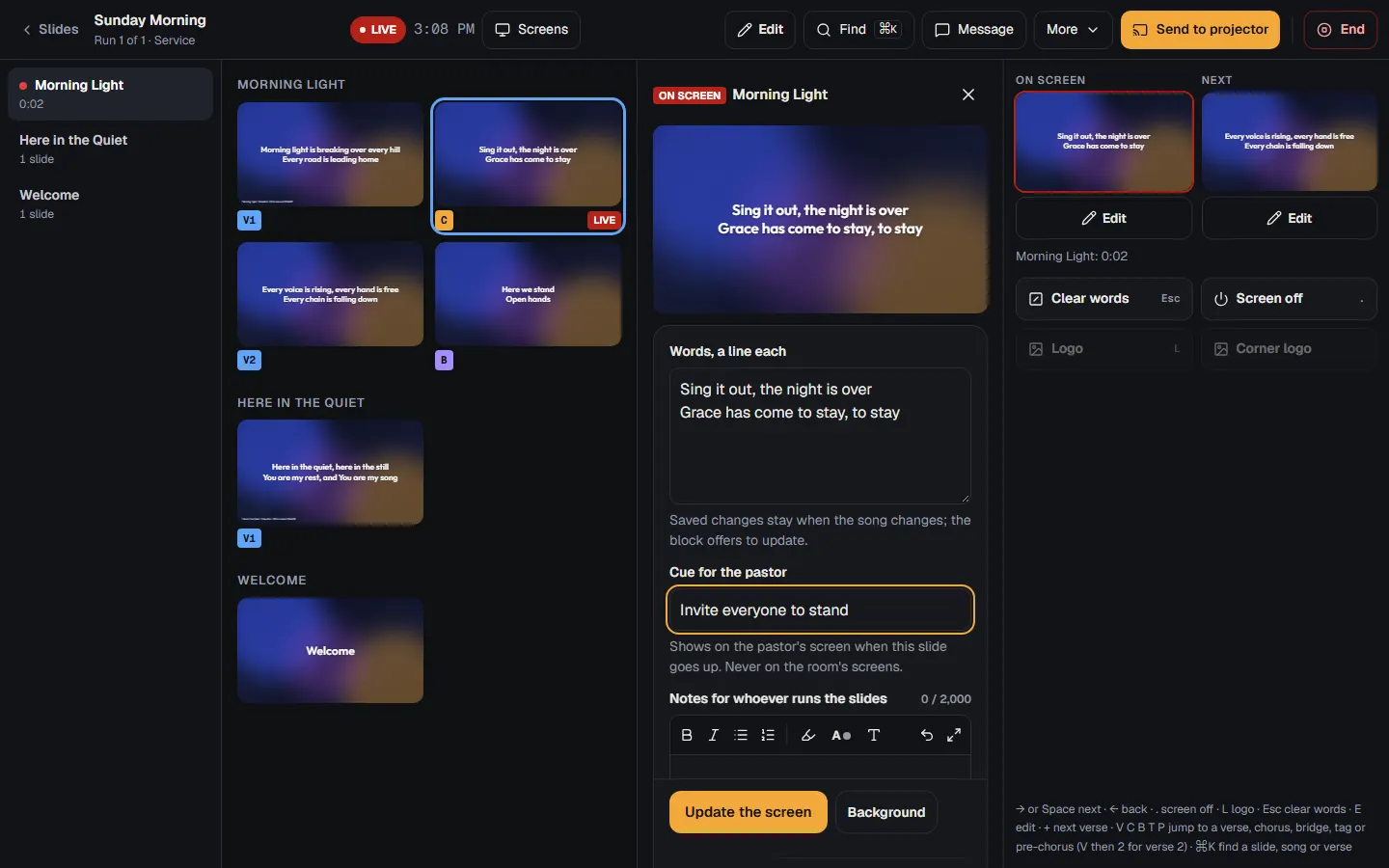
Fix a slide on the spot
- Press under the slide on the screen (or under Next), or press E. On an iPad, turn on at the top, then tap any slide.
- The slide opens beside the show, with a picture of how it will look. Type the change.
- Press . The new words go up at once, and puts the old ones back.
If someone else just changed the same slide, choose or . Without the internet, the screen still changes, and the slide saves when the connection is back.
The arrow keys and a clicker keep running the show. Page Down and Page Up move the slides even while you type, and Esc only leaves the box.
A slide can carry a short , like "Invite everyone to stand". It shows on the pastor's screen when the slide goes up, and never on the room's screens.
Look at other pages
Press at the top left: the slides open in a tab of their own, and the show keeps running in this one. While the show is live, every PraisePad page in that browser has a dark bar across the top: what's on the screen, , , , and .
Jump to a song or a verse
Click a song or a reading in the list on the left to show its first slide; for five seconds, a button offers to go back. While a verse is up, adds the next one after it. can look a verse up by a few of its words.
When the songs or the computer change
If a song's words change during the service, the screen stays on the same part. If the slide on the screen itself changed, PraisePad offers .
After a reload, press to carry on, or . With a second computer, the one that started last runs the screens, and the other offers .
Open in PraisePad to try it